Yesterday I placed my order on Amazon for a 32 GB iPad 4 with Sprint 4G.
I skipped the 3rd gen, and was planning to wait until March/April to upgrade. But with the introduction of the 128GB iPads, most people aren't expecting another real upgrade til October. But iOS 6 is jailbreakable now, and it might not be come October. Or the new processor might not be. So I don't really want to wait til the iPad 5 gets jailbroken, which would probably be a year from now.
What I was really hoping for was that with the next version Apple would drop the 16GB and drop the 32GB to $500 - I definitely need more space, but since I also wanted to upgrade to 4G with this version I'm not that happy to be paying extra for both. But that's how it goes - I want a nicer iPad than I bought last time, I gotta pay for it.
With prime shipping, it should be here tomorrow. The thing I'm most excited for, I gotta admit, is the better camera. Since I have my iPad on me more than my camera, I've taken a lot of photos and videos of my toddler on it, starting the day we brought him home from the hospital. But of course, the photos are mostly crap. I've had a few that look ok (not great) printed out at 4x6, but most are way too grainy to even bother printing. A halfway decent camera on my iPad will be awesome!
Wednesday, February 20, 2013


Friday, February 8, 2013
If Image Capture shows multiple copies? Don't delete them!
I just had a bit of an iPad-induced panic attack, so I thought I'd let you all know what happened so that you can avoid the same fate. Luckily, Restore from Backup fixed me, but better to not have to do that, right?
With the recent release of the evasi0n iOS 6 jailbreak, I was all ready to upgrade my iPad (which is still on 5.1.1) and re-jailbreak. But I'm running out of space on my little 16GB-er, and iTunes said I had 3GB of photos, so I decided to clean house a bit first. As I've mentioned many times, I had a baby right after buying my iPad, and I've been using it to take little videos of him since we brought him home - meaning I now have a lot of video of him taking up room on my iPad.
I opened up Image Capture to import these videos onto my Mac and get them off the iPad, and an odd thing happened - it showed me as having three copies of every photo and video. I thought Well gee, no wonder it's taking up so much space! and promptly selected two of each video and hit delete.
Surprise! There weren't really three copies! Only one, and I just deleted them all! I checked, no longer on the iPad. No longer in Image Capture. It still showed ghost copies, but wouldn't let me do anything with them. All those precious videos of my baby, gone!
After panicking for a minute or two, I managed to get my head together enough to try restoring my iPad from the backup I'd made only ten minutes before. I'd never done this before, so I had no idea if it would work. The dialogue box says it will "only" restore contacts, calendars, notes, and settings, no mention of Photos, so I wasn't sure. And I'd heard people claim that it destroys your jailbreak, but that didn't matter since I was about to upgrade and re-jb.
Luckily, it did work. All photos and videos restores, and jailbreak was not touched, for the record. My iPad is now exactly as it was before I hit the delete button. I have now properly imported all those videos and they are safely on my hard drive. I also have a good 3GB of space open on my iPad, which is more than I've had in months.
So, lessons:
With the recent release of the evasi0n iOS 6 jailbreak, I was all ready to upgrade my iPad (which is still on 5.1.1) and re-jailbreak. But I'm running out of space on my little 16GB-er, and iTunes said I had 3GB of photos, so I decided to clean house a bit first. As I've mentioned many times, I had a baby right after buying my iPad, and I've been using it to take little videos of him since we brought him home - meaning I now have a lot of video of him taking up room on my iPad.
I opened up Image Capture to import these videos onto my Mac and get them off the iPad, and an odd thing happened - it showed me as having three copies of every photo and video. I thought Well gee, no wonder it's taking up so much space! and promptly selected two of each video and hit delete.
Surprise! There weren't really three copies! Only one, and I just deleted them all! I checked, no longer on the iPad. No longer in Image Capture. It still showed ghost copies, but wouldn't let me do anything with them. All those precious videos of my baby, gone!
After panicking for a minute or two, I managed to get my head together enough to try restoring my iPad from the backup I'd made only ten minutes before. I'd never done this before, so I had no idea if it would work. The dialogue box says it will "only" restore contacts, calendars, notes, and settings, no mention of Photos, so I wasn't sure. And I'd heard people claim that it destroys your jailbreak, but that didn't matter since I was about to upgrade and re-jb.
Luckily, it did work. All photos and videos restores, and jailbreak was not touched, for the record. My iPad is now exactly as it was before I hit the delete button. I have now properly imported all those videos and they are safely on my hard drive. I also have a good 3GB of space open on my iPad, which is more than I've had in months.
So, lessons:
- Every time you plug your iPad into the computer, make sure it's backed up before you do anything.
- If Image Capture shows multiple copies of things, don't believe it. Act as though every copy is the only one.
- If you do delete things unintentionally, Restore from Backup will fix it. It takes a good 15 minutes, though.
- Restore from Backup does not destroy your jailbreak! (At least, this was true on an iPad 2 running 5.1.1 jailbroken with redsnow. No clue if it will hold true with the new stuff.)
Wednesday, February 6, 2013
Conceptis Brings Japanese Logic Puzzles to the iPad
I'm a puzzle nerd, although I'll admit that having a baby has slowed me down a bit. I do regular crosswords and occasionally sudokus, but I'd rather do a cryptic crossword or another type of Japanese logic puzzle like a Nurikabe, Heyawake, or Hashi.
These logic puzzles are perfectly suited to the touch interface of an iPad, but until recently they were only available via iPhone apps. The low resolution limits the size of the puzzle grids, and therefore the difficulty of the puzzles. The hardest Nurikabe in the paid app only took me about ten minutes to finish - and I am not especially good at these.
Finally, though, these are slowly making their way to the iPad in full HD resolution!

Most of these puzzles were invented by Japanese company Nikoli, but are often distributed in the United States by Conceptis, Ltd - while the iPhone apps were under the Nikoli name, the iPad apps are by Conceptis. Currently there are six iPad apps available:

These logic puzzles are perfectly suited to the touch interface of an iPad, but until recently they were only available via iPhone apps. The low resolution limits the size of the puzzle grids, and therefore the difficulty of the puzzles. The hardest Nurikabe in the paid app only took me about ten minutes to finish - and I am not especially good at these.
Finally, though, these are slowly making their way to the iPad in full HD resolution!

Most of these puzzles were invented by Japanese company Nikoli, but are often distributed in the United States by Conceptis, Ltd - while the iPhone apps were under the Nikoli name, the iPad apps are by Conceptis. Currently there are six iPad apps available:
- Nurikabe
- Hashi, also known as Bridges
- Pic-A-Pix, also known as Paint By Number.
- Link-A-Pix (a Pic-A-Pix variant)
- Fill-A-Pix (another variant)
- And of course, Sudoku
The interfaces are clean and uncluttered. These apps are all free, and come with an impressive 120 puzzles each to get you started! 40 easy, 40 medium, and 40 hard. Additional puzzles can be bought in various packs ranging from $1.99-2.99 depending on the size of the puzzles.

If you enjoy Sudoku, or its cousin Ken-Ken (which has been making regular newspaper appearances lately), I highly recommend you check out these other logic puzzles via these excellent free apps! These just started rolling out in November, with the most recent appearing in January, so hopefully they will continue to release other puzzle types.
Saturday, June 30, 2012
My favorite iPad text editor: PlainText
One app I've been using a lot lately is PlainText, a simple text editor that syncs seamlessly with Dropbox and saves as actual .txt files. (Free with ads, lose the ads for $2.)
I use TextEdit a lot on my Macs, doing almost everything I can in plain text or .rtf documents. I only use Word when I actually need the features. But it was surprisingly hard to find an editor on the iPad that could open and save to a simple .txt. I tried Evernote, but it saves you work as some internal file type that can't really be accessed outside of Evernote itself. Same for my extensive collection of notetaking apps that allow both typing and handwriting.
I wanted an app to work on simple lists, blog posts, and other writing projects in, so that I could also open them in TextEdit or other programs on any computer. Enter PlainText.
It's simple and does its job beautifully. It creates a folder in DropBox, and you can either set it to sync continually or only when you tell it to. (I had it set to sync continually, til my husband was using the computer and got annoyed when it kept telling him that Note.txt had been updated - now I sync manually.) You can create subfolders within the app. The text editor itself is simple, no frills. The document list is in a column on the left (it doesn't autohide in portrait, by the way), or you can go into focus mode and see only the text you're working on.

It's certainly nothing fancy. But it is precisely what I'd been looking for. If I could wish for one upgrade, I would want it to also do simple .rtf files, possibly via MarkDown. I've had a hell of a time finding anything on iOS that does .rtf. But for now, it's serving its purpose very well.
I use TextEdit a lot on my Macs, doing almost everything I can in plain text or .rtf documents. I only use Word when I actually need the features. But it was surprisingly hard to find an editor on the iPad that could open and save to a simple .txt. I tried Evernote, but it saves you work as some internal file type that can't really be accessed outside of Evernote itself. Same for my extensive collection of notetaking apps that allow both typing and handwriting.
I wanted an app to work on simple lists, blog posts, and other writing projects in, so that I could also open them in TextEdit or other programs on any computer. Enter PlainText.
It's simple and does its job beautifully. It creates a folder in DropBox, and you can either set it to sync continually or only when you tell it to. (I had it set to sync continually, til my husband was using the computer and got annoyed when it kept telling him that Note.txt had been updated - now I sync manually.) You can create subfolders within the app. The text editor itself is simple, no frills. The document list is in a column on the left (it doesn't autohide in portrait, by the way), or you can go into focus mode and see only the text you're working on.

It's certainly nothing fancy. But it is precisely what I'd been looking for. If I could wish for one upgrade, I would want it to also do simple .rtf files, possibly via MarkDown. I've had a hell of a time finding anything on iOS that does .rtf. But for now, it's serving its purpose very well.
Sunday, June 10, 2012
A few favorite photo apps
Sorry I've been gone for a bit, but hopefully I'll be updating regularly again now!
I do a lot of photo editing on my iPad. A LOT. My camera has an Eye-Fi card in it that auto-uploads every picture I snap to Photobucket. I use the Photobucket app to sort through those, put them in albums, etc. Then I download the ones that need fixing up and do that on the iPad and reupload them with the app.
I have literally a couple dozen photo editing apps on my iPad, but over time I've found that there are just a few that I keep going back to, the workhorses that are good for more than just a few gimmicks.
Snapseed - There's a reason this app won app of the year last year. We went to Hawaii this year, and the photo problem was that there was tons of nice scenery, but it was overcast and rainy almost the whole time so it was hard to get a nice shot of it. Enter Snapseed, with their Drama filters and excellent tuning tools. Over and over again, I put in a photo that was too dark, too underexposed, and it found whatever information was hiding in there and brought it out to great effect.
Photo as originally taken:

After running it through Snapseed:

Snapseed brought out details of the island that I thought had been lost, and made the water look more like it had before the clouds rolled in and dulled its surface. And it took just a couple of minutes!
PhotoGene - This is actually a recent purchase, but I'm already using it constantly. I bought it for its redeye correction - the Photos app can catch some red eyes, but sometimes it overdoes it and you wind up with eyes that look like they came out of a horror movie. Rather than simply putting black blobs over the red, PhotoGene adjusts the color to a yellower hue and darkens it. And if that doesn't work, it has a dodge mask feature that lets you darken just the bit you want, to get rid of remaining pupil glare. And if that doesn't work, it has a cloning heal tool, and I will freely admit that I just printed out a couple pictures that had one iris cloned over to the other side to cover up an irretrievably red eye. You have to be careful with that, of course, or you'll wind up with some very creepy results, but if you're careful you can't tell, especially at 4x6 size. The masking tools are useful for a variety of other applications as well, and I have barely begun to explore this app's other features.
Here is an example of my dog Fred before:

And after redeye correction and a burn mask in PhotoGene:

As you can see, the Photo app correction is a little too harsh in this picture; I find it works best when the pupil is well-defined and is the only thing that's red:

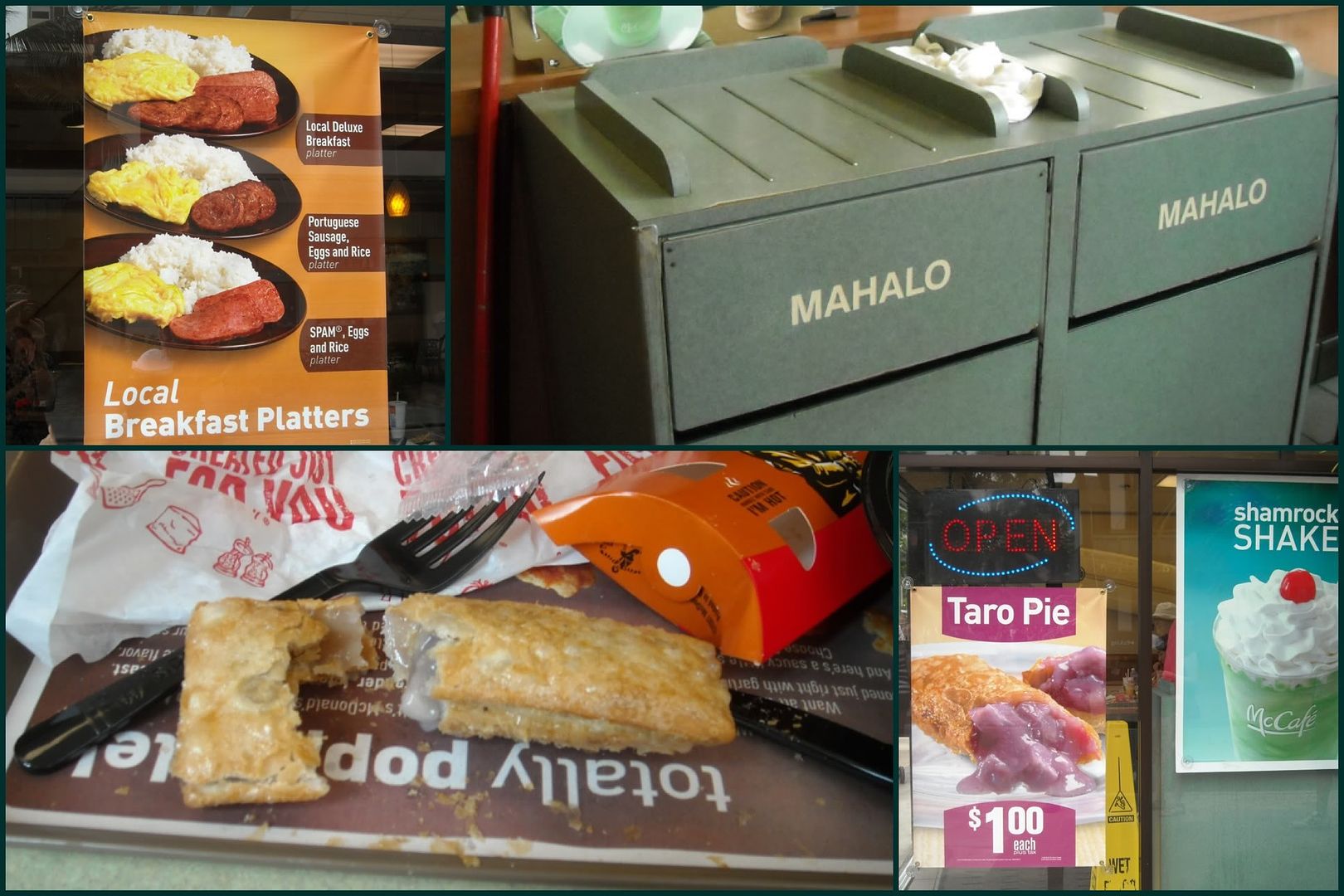
PicStitch - I assumed that a collage-making app would be a gimmick I'd use once or twice and forget about, but this turns out to be a very useful tool. When I have a variety of similar shots that I want to share online (say, of my baby trying different foods and making a mess out of all of them) I don't have to make my FaceBook friends flip through a whole album. I even print them out sometimes - I wanted to capture the interesting local options on the Waikiki McDonald's menu, but didn't really want to print out four photos of a McDonald's, so instead I printed this one picture:
I do a lot of photo editing on my iPad. A LOT. My camera has an Eye-Fi card in it that auto-uploads every picture I snap to Photobucket. I use the Photobucket app to sort through those, put them in albums, etc. Then I download the ones that need fixing up and do that on the iPad and reupload them with the app.
I have literally a couple dozen photo editing apps on my iPad, but over time I've found that there are just a few that I keep going back to, the workhorses that are good for more than just a few gimmicks.
Snapseed - There's a reason this app won app of the year last year. We went to Hawaii this year, and the photo problem was that there was tons of nice scenery, but it was overcast and rainy almost the whole time so it was hard to get a nice shot of it. Enter Snapseed, with their Drama filters and excellent tuning tools. Over and over again, I put in a photo that was too dark, too underexposed, and it found whatever information was hiding in there and brought it out to great effect.
Photo as originally taken:
After running it through Snapseed:
Snapseed brought out details of the island that I thought had been lost, and made the water look more like it had before the clouds rolled in and dulled its surface. And it took just a couple of minutes!
PhotoGene - This is actually a recent purchase, but I'm already using it constantly. I bought it for its redeye correction - the Photos app can catch some red eyes, but sometimes it overdoes it and you wind up with eyes that look like they came out of a horror movie. Rather than simply putting black blobs over the red, PhotoGene adjusts the color to a yellower hue and darkens it. And if that doesn't work, it has a dodge mask feature that lets you darken just the bit you want, to get rid of remaining pupil glare. And if that doesn't work, it has a cloning heal tool, and I will freely admit that I just printed out a couple pictures that had one iris cloned over to the other side to cover up an irretrievably red eye. You have to be careful with that, of course, or you'll wind up with some very creepy results, but if you're careful you can't tell, especially at 4x6 size. The masking tools are useful for a variety of other applications as well, and I have barely begun to explore this app's other features.
Here is an example of my dog Fred before:
And after redeye correction and a burn mask in PhotoGene:
As you can see, the Photo app correction is a little too harsh in this picture; I find it works best when the pupil is well-defined and is the only thing that's red:
PicStitch - I assumed that a collage-making app would be a gimmick I'd use once or twice and forget about, but this turns out to be a very useful tool. When I have a variety of similar shots that I want to share online (say, of my baby trying different foods and making a mess out of all of them) I don't have to make my FaceBook friends flip through a whole album. I even print them out sometimes - I wanted to capture the interesting local options on the Waikiki McDonald's menu, but didn't really want to print out four photos of a McDonald's, so instead I printed this one picture:
Saturday, April 21, 2012
The Road to the App Store
I'm doing a 101 in 1001 project - that is, I set 101 goals for myself and have 1001 days (about 2 years, 9 months) to achieve them. One of those goals is to write my own iPad app! I have a few app ideas, but the simplest one (a good place to start) will actually be the app I wish I had when making this list of goals. Right now I'm using Task PRO to keep track of them, and it's a great app that I like a lot but there are a few features I'd like to have specifically for this kind of goal list.
Now, I haven't really programmed much since I took 6.001 (Structure & Interpretation of Computer Programs) my freshman year at MIT - and that was well over a decade ago! And it was taught in Scheme, an obscure variant of Lisp (already an obscure programming language) that is pretty much only used in 6.001 and classes around the country based on it. I programmed a little in plain C in high school, but I've never really used an object-oriented language... Unless you count NetLogo. Yes, that's a descendant of the Logo that had you telling a turtle to turn right 90 degrees in elementary school. Unlike original flavor, NetLogo isn't the worst intro to OOP you could hope for, so there's that.
What I'm trying to say is, I understand the theory but I don't know any useful programming languages.
So this is going to be a fairly big project.
I'm getting started by taking the Stanford iOS development class from iTunes U. Even that is proving to be tricky, though, since I run OSX 10.6 on my desktop. Why does that matter? Well, the most up to date version of the class, which covers iOS 5, requires Xcode 4 for the assignments - and to get Xcode 4 my options seem to be upgrading to 10.7 (which I'm hesitant to do for various reasons that I won't go into here because this is an iPad blog, not a Mac blog) or paying the $100 developer fee now. I'll have to pay it eventually anyhow, I was just hoping to put it off since it's an annual fee.
So I'm watching the lectures now and mulling what to do about the assignments. I'll keep you updated as I progress, for anyone interested in seeing the app development process from total noob to App Store.
Now, I haven't really programmed much since I took 6.001 (Structure & Interpretation of Computer Programs) my freshman year at MIT - and that was well over a decade ago! And it was taught in Scheme, an obscure variant of Lisp (already an obscure programming language) that is pretty much only used in 6.001 and classes around the country based on it. I programmed a little in plain C in high school, but I've never really used an object-oriented language... Unless you count NetLogo. Yes, that's a descendant of the Logo that had you telling a turtle to turn right 90 degrees in elementary school. Unlike original flavor, NetLogo isn't the worst intro to OOP you could hope for, so there's that.
What I'm trying to say is, I understand the theory but I don't know any useful programming languages.
So this is going to be a fairly big project.
I'm getting started by taking the Stanford iOS development class from iTunes U. Even that is proving to be tricky, though, since I run OSX 10.6 on my desktop. Why does that matter? Well, the most up to date version of the class, which covers iOS 5, requires Xcode 4 for the assignments - and to get Xcode 4 my options seem to be upgrading to 10.7 (which I'm hesitant to do for various reasons that I won't go into here because this is an iPad blog, not a Mac blog) or paying the $100 developer fee now. I'll have to pay it eventually anyhow, I was just hoping to put it off since it's an annual fee.
So I'm watching the lectures now and mulling what to do about the assignments. I'll keep you updated as I progress, for anyone interested in seeing the app development process from total noob to App Store.
Thursday, April 12, 2012
iKeyWi HD - The tweak I've been waiting for!
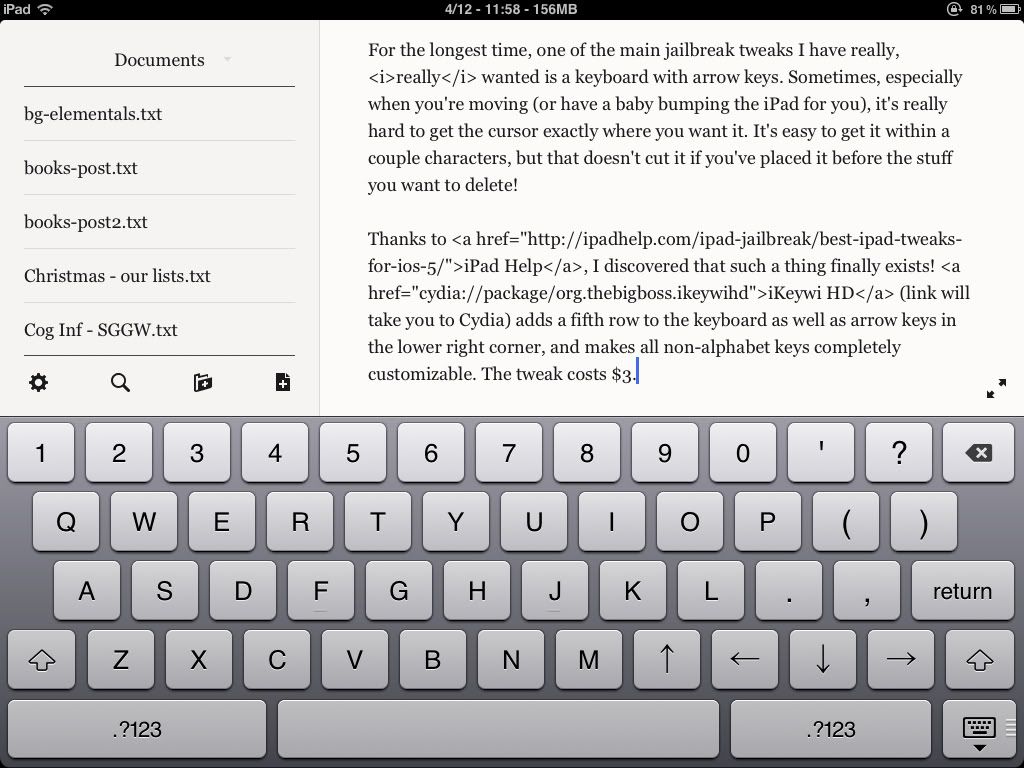
For the longest time, one of the main jailbreak tweaks I have really, really wanted is a keyboard with arrow keys. Sometimes, especially when you're moving (or have a baby bumping the iPad), it's really hard to get the cursor exactly where you want it. It's easy to get it within a couple characters, but that doesn't cut it if you've placed it before the stuff you want to delete.
Thanks to iPad Help, I discovered that such a thing finally exists! iKeywi HD (link will take you to Cydia) adds a fifth row to the keyboard as well as arrow keys in the lower right corner, and makes all non-alphabet keys completely customizable. The tweak costs $3.
This is exactly what I've been hoping for! Not only arrow keys, but numbers on the main keyboard as well as the ability to make all kinds of symbols easier to get to. The keys are smaller because you're fitting more into the same space; for some people with big fingers this might be a downside, but for me it just makes it easier for me to type one-handed in landscape!
Now, I was all set to tell you that, unfortunately, the tweak is buggy to the point of being unusable. BUT - I went back to Cydia to check for an update, and sure enough, the worst of the bugs have been fixed! Yay for developers who are on the ball! There are still a few problems to watch out for, though:
- At first, it had problems capitalizing words at the start of lines or sentences. Now the only issue is if the word needs to be autocorrected, it gets corrected to lowercase.
- The arrows weren't working for me in many apps - now they work almost everywhere. They still aren't working for me in Mail, or on some website text boxes in Atomic.
It's also a bit sad to lose the ability to swipe up from the . and , keys to get to ' and ", but since everything is customizable I can still get to those with the shift. The other feature I'd like is being able to actually turn the keyboard on and off in Settings - right now the only way to revert to the standard keyboard is by deleting iKeyWi entirely.
Now that the worst of the bugs have been fixed, I think this tweak is definitely worth the $3 if you've been wanting a better keyboard. I came for the arrows, but I'm staying for the ability to assign entire HTML tags to a single key.
Thanks to iPad Help, I discovered that such a thing finally exists! iKeywi HD (link will take you to Cydia) adds a fifth row to the keyboard as well as arrow keys in the lower right corner, and makes all non-alphabet keys completely customizable. The tweak costs $3.
This is exactly what I've been hoping for! Not only arrow keys, but numbers on the main keyboard as well as the ability to make all kinds of symbols easier to get to. The keys are smaller because you're fitting more into the same space; for some people with big fingers this might be a downside, but for me it just makes it easier for me to type one-handed in landscape!
Now, I was all set to tell you that, unfortunately, the tweak is buggy to the point of being unusable. BUT - I went back to Cydia to check for an update, and sure enough, the worst of the bugs have been fixed! Yay for developers who are on the ball! There are still a few problems to watch out for, though:
- At first, it had problems capitalizing words at the start of lines or sentences. Now the only issue is if the word needs to be autocorrected, it gets corrected to lowercase.
- The arrows weren't working for me in many apps - now they work almost everywhere. They still aren't working for me in Mail, or on some website text boxes in Atomic.
It's also a bit sad to lose the ability to swipe up from the . and , keys to get to ' and ", but since everything is customizable I can still get to those with the shift. The other feature I'd like is being able to actually turn the keyboard on and off in Settings - right now the only way to revert to the standard keyboard is by deleting iKeyWi entirely.
Now that the worst of the bugs have been fixed, I think this tweak is definitely worth the $3 if you've been wanting a better keyboard. I came for the arrows, but I'm staying for the ability to assign entire HTML tags to a single key.
Subscribe to:
Posts (Atom)